

Note: This document use for KinCony KCS v3 firmware smart controller with Zigbee function.
1. Download “KCS” v3 firmware to KinCony ESP32-S3 series board.
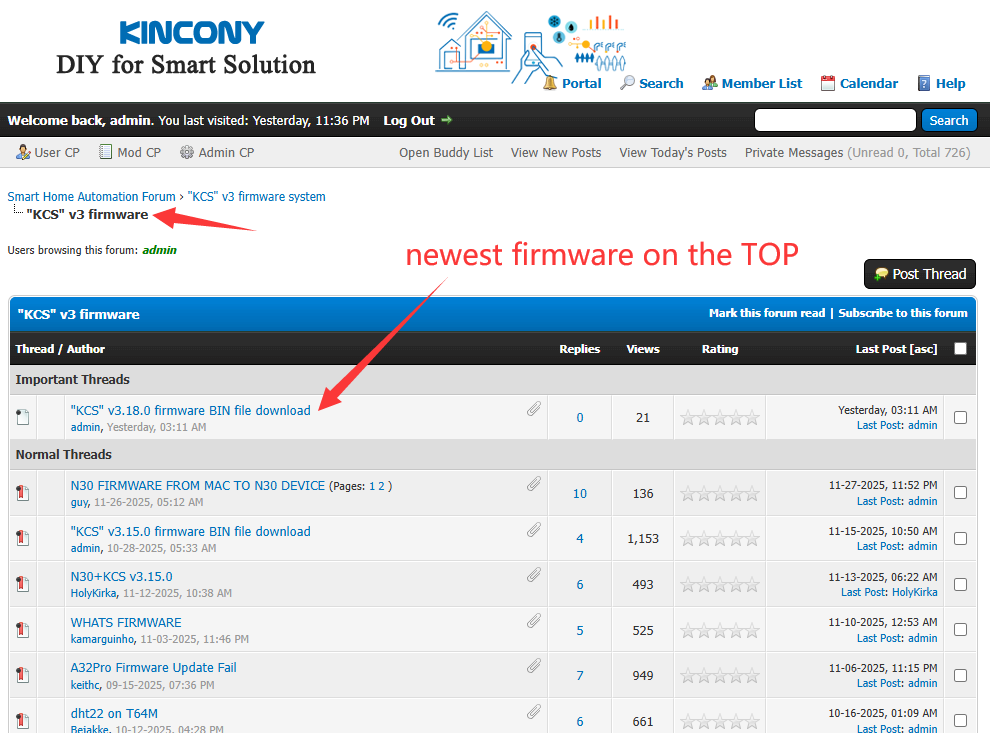
a. Download “ESP32 download tool” from https://www.kincony.com/wp-content/uploads/2022/08/flash_download_tool_3.9.2.zip and firmware BIN file from KinCony forum.
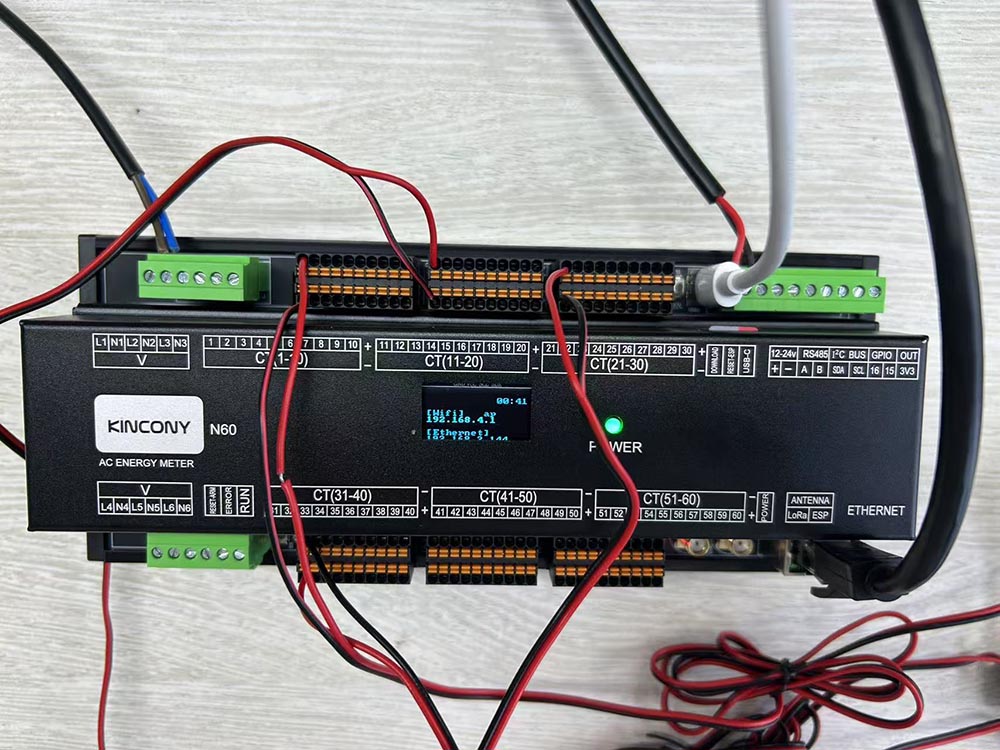
b. Open “flash_download_tool_3.9.2.exe”, (firstly MUST connect USB cable to your board, power on)
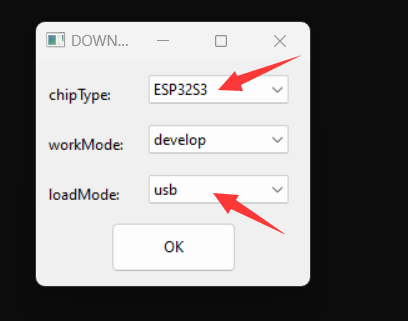
chose “ESP32-S3” and workMode=“develop” loadMode: “usb” item.
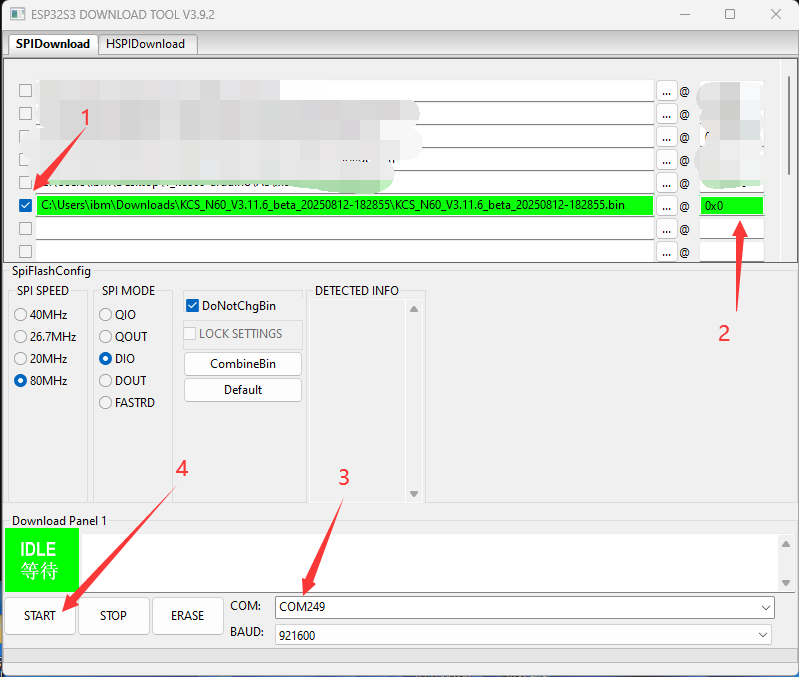
c. Chose KCS v3 firmware BIN file and COM port then begin download.
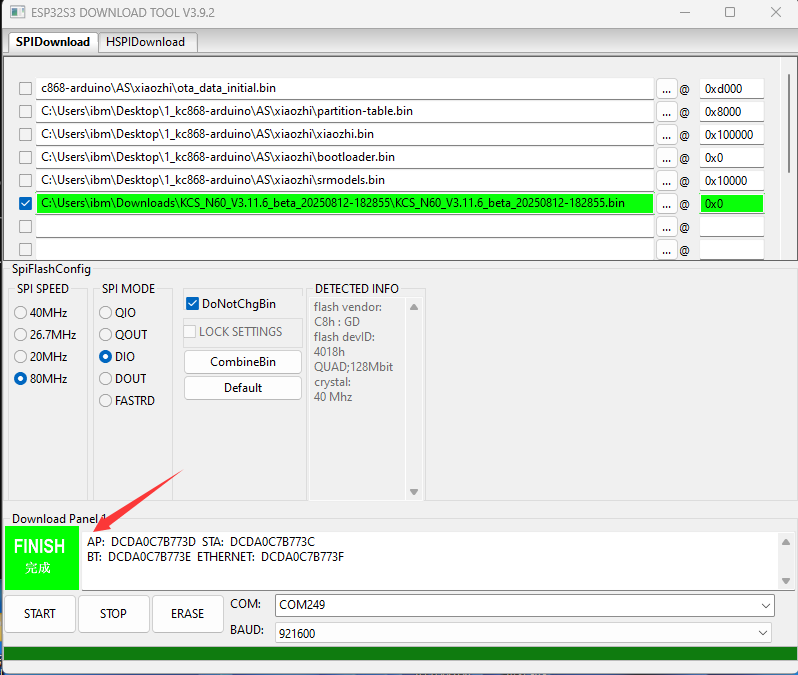
note: if download failure. You can do these steps, let controller ESP32S3 enter BOOTLOAD again:
1. power off KinCony Controller.
2. hold on DW (ESP32 download button), don’t move your finger.
3. power on of controller
4. release your finger.
5. Then controller enter bootloader mode. download firmware again.
2. Use ethernet cable or WiFi config setting.
a. use ethernet cable connect board to your router, make sure your computer also connect with same router, just all in one local network.
b. Power on of your board, you can use KinCony scan device tool to find output board IP address.
https://www.kincony.com/download/KinCony-SCAN_Device.zip
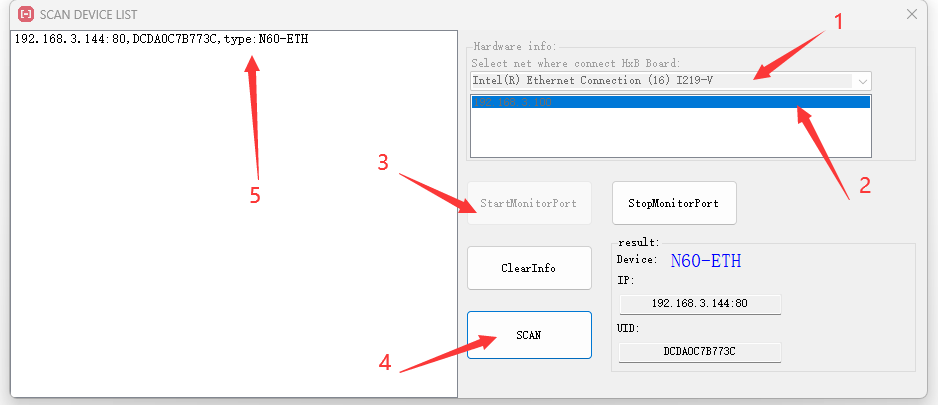
Total 5 steps to find out IP address.
Step-1: chose your computer network adapter when you are using.
Step-2: chose your computer IP address item.
Step-3: click “StartMonitorPort” button.
Step-4: click “SCAN” button.
Step-5: board’s ethernet or WiFi IP address , ID and type name will be listed.
c. another easy way, you can check IP address on LCD display. Here showed wifi and ethernet IP address.
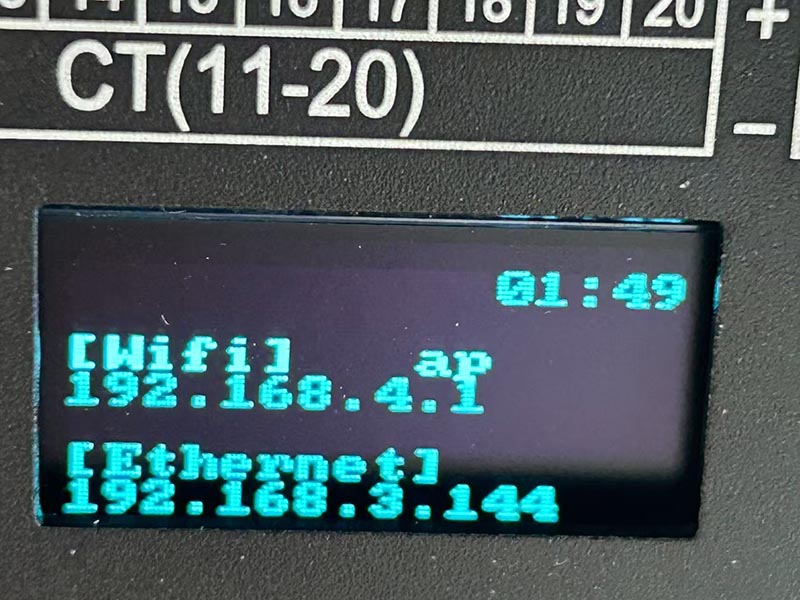
If you first time power on , you board will be found by ethernet IP address. Because your WiFi is work as “AP” mode as default. After you config your WiFi as “STA” mode, you will find out the WiFi IP address by KinCony scan device tool.
You can use ethernet IP address login by web browser to config board setting.
Note: if you want config only by WiFi, when power on, your computer will find the “AP” hotspot, WiFi signal named “board name” + “ID”.
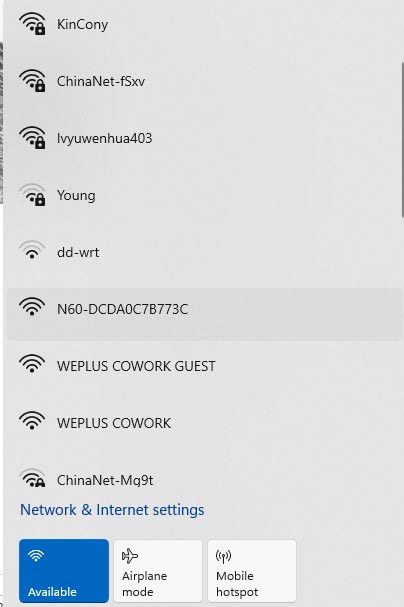
Let your computer connect to the “AP”, it’s without password, after you connected, just use http://192.168.4.1 to login by webpage.
If you can’t see the “AP”, you can “hold on” board’s function button (ESP32 GPIO0) >10 seconds, then board will be set to factory, default state is “AP”.
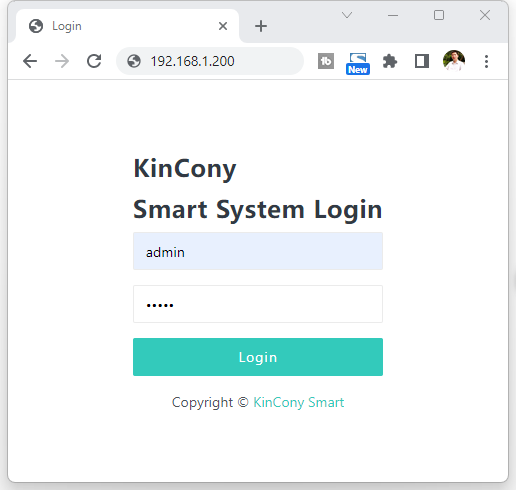
You can login webpage by ethernet IP or WiFi IP. Here is sample login by ethernet IP address.
Login user name and password default are “admin” “admin”
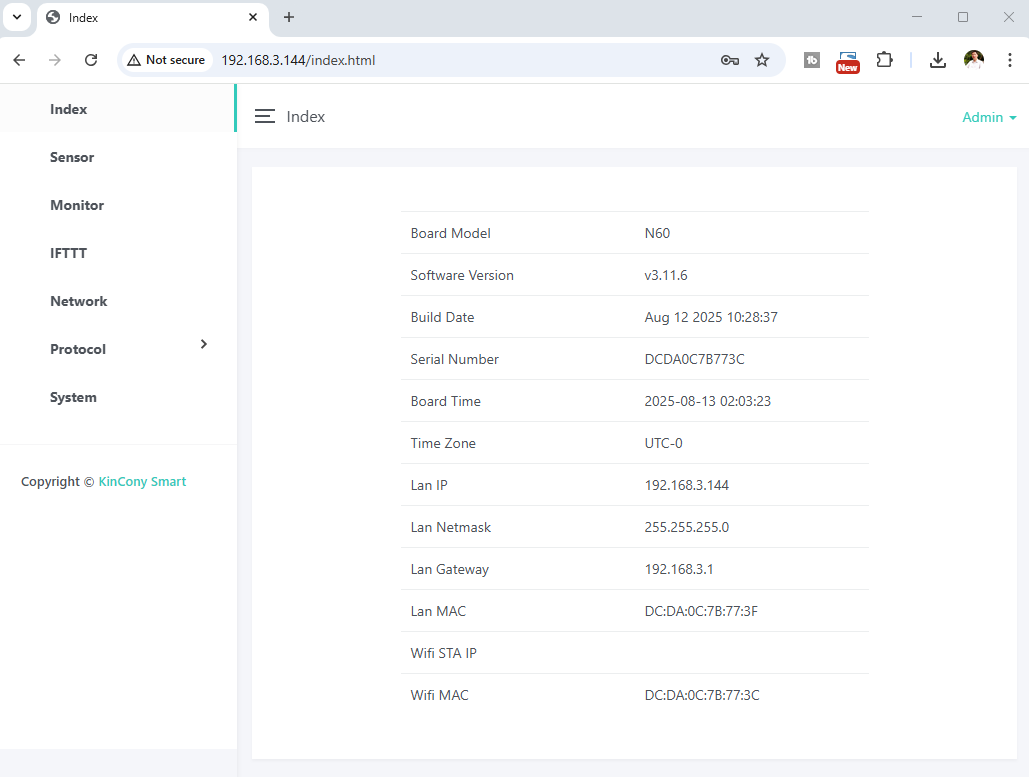
You can see this home page. Some parameters are shown.
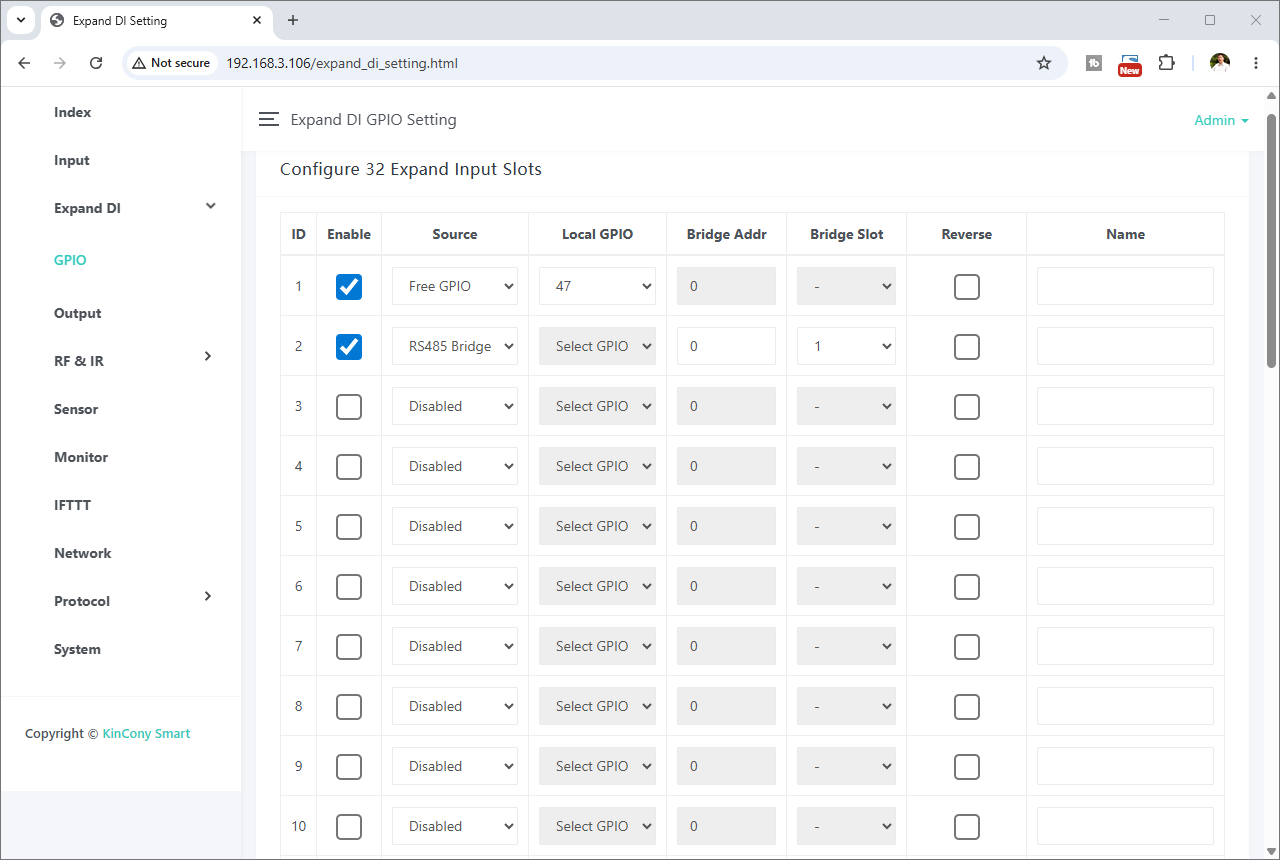
Expand DI: if board don’t have enough digital input ports, you can expand digital input by “Free GPIO” or “RS485 Bridge”.
source: Free GPIO: you can set free GPIO work as digital input port.
RS485 Bridge: expand digital input by KinCony TR board using RS485. The “TR” will work as a RS485 Bridge. Use for long distance cable.
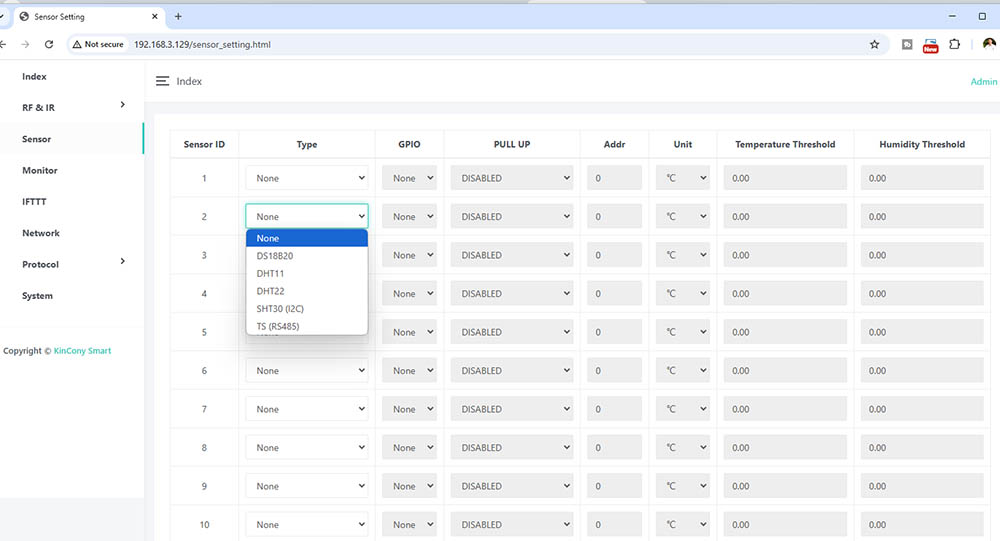
Here is sensor webpage. You can set different sensor model for:
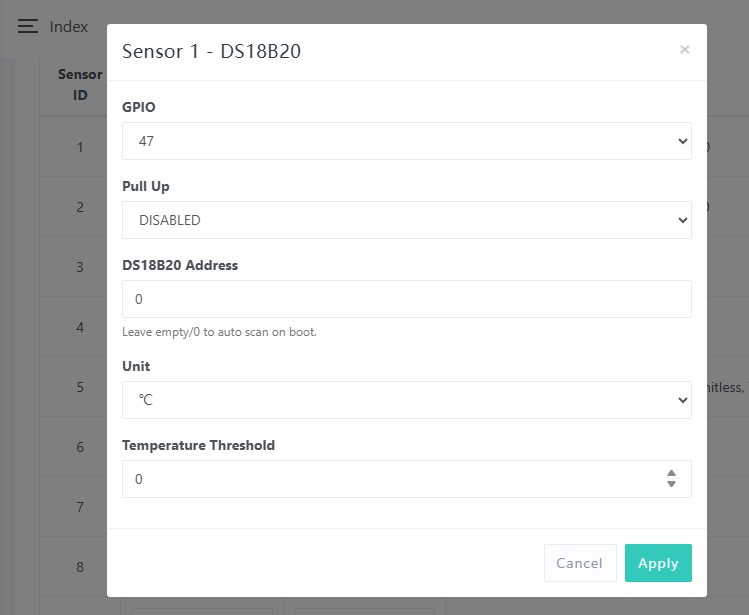
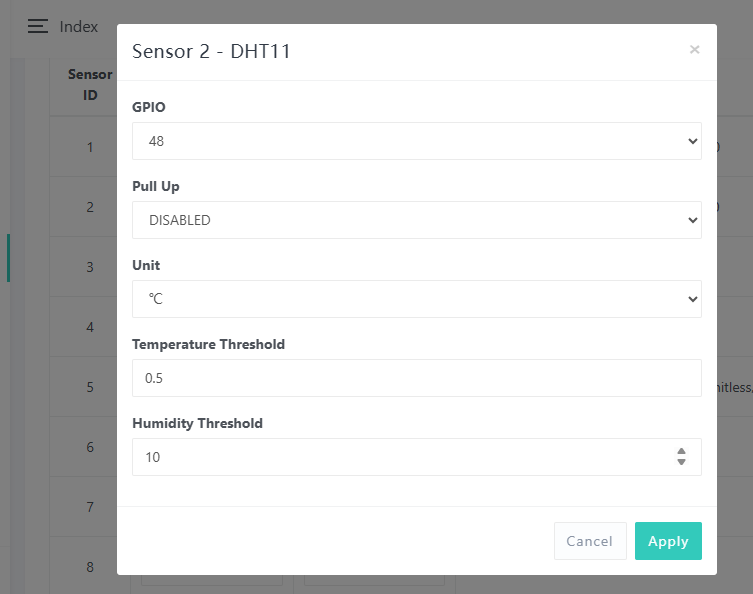
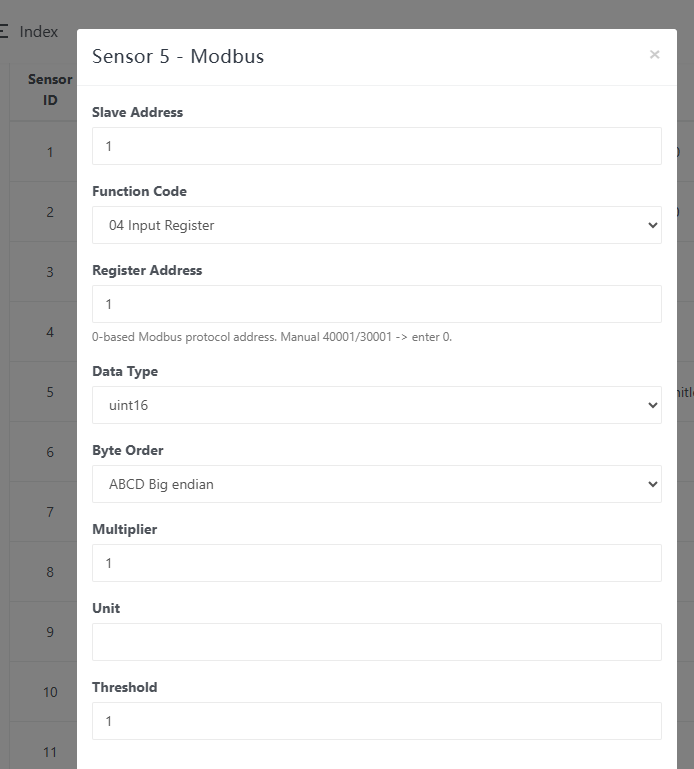
1-wire GPIO ports for DS18B20 / DHT11 / DHT22 / SHT30 / TS / TR / Modbus sensor.
I2C bus port use SHT30 sensor.
RS485 for KinCony TS and TR temperature and humidity sensor.
Mosbus sensor: support add standard modbus sensor by register address.
“PULL UP” is option for GPIO enable / disable pull up resistance by software. if without this option, that means already include pull up resistance on PCB.
Temperature Threshold:
If the preset difference is exceeded, temperature data will be auto updated.
For example: “Temperature Threshold” =2 now temperature is 28°C, so next time , when new temperature is >30°C(28+2) or <26°C(28-2) will update.
Humidity Threshold:
If the preset difference is exceeded, humidity data will be auto updated.
For example: “Humidity Threshold” =10 now humidity is 75%, so next time , when new humidity is >85%(75+10) or <65%(75-10) will update.
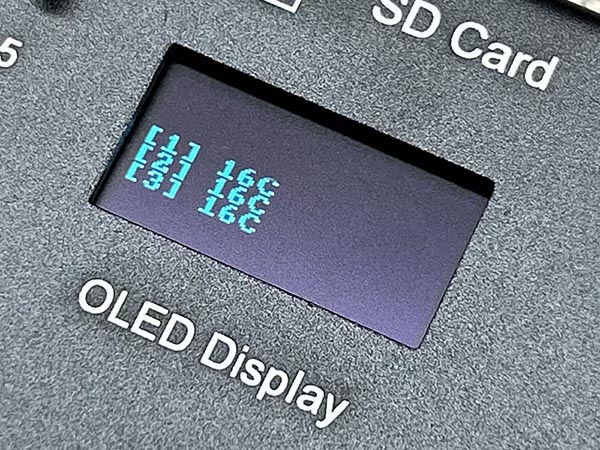
Display screen: if “enabled” this option, the sensor value will showed on the OLED display.
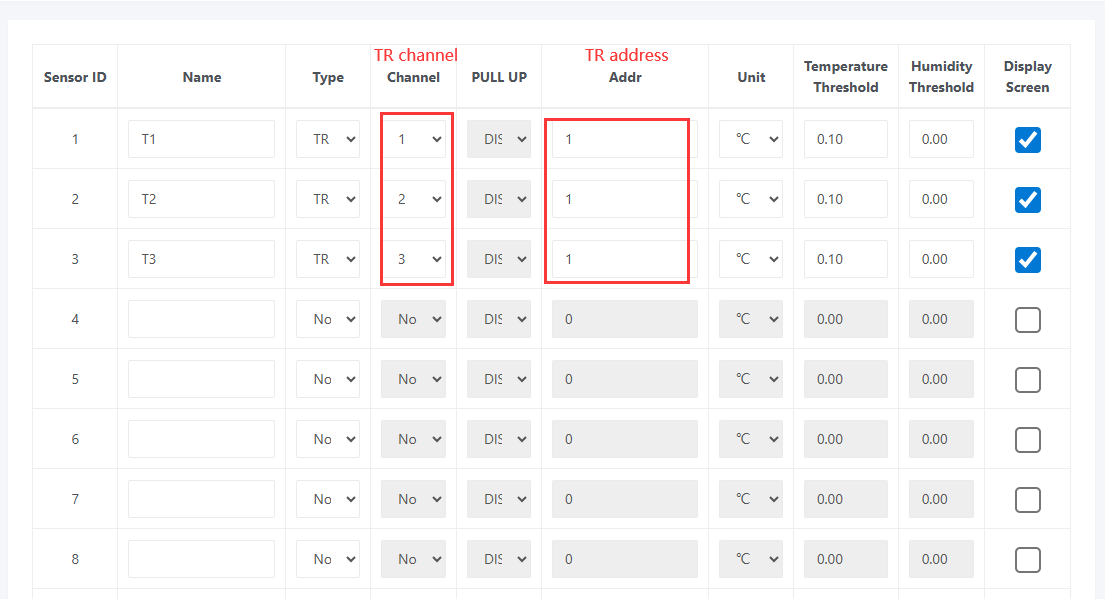
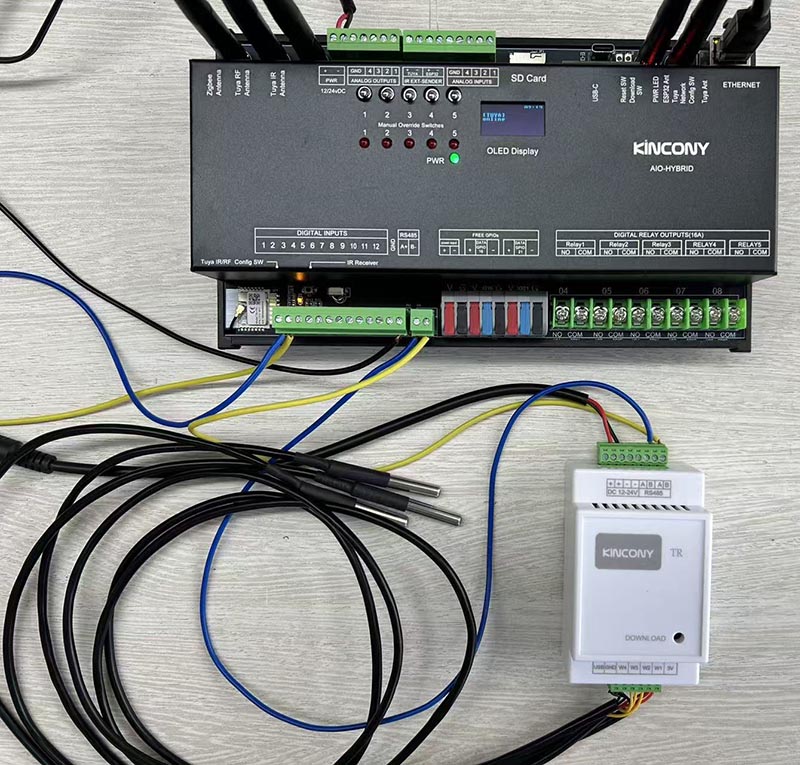
this is sample config for 3pcs of DS18B20 connect with TR for MAX 1000 meter long distance. AIO Hybrid controller + TR + 3pcs of DS18B20 using RS485.
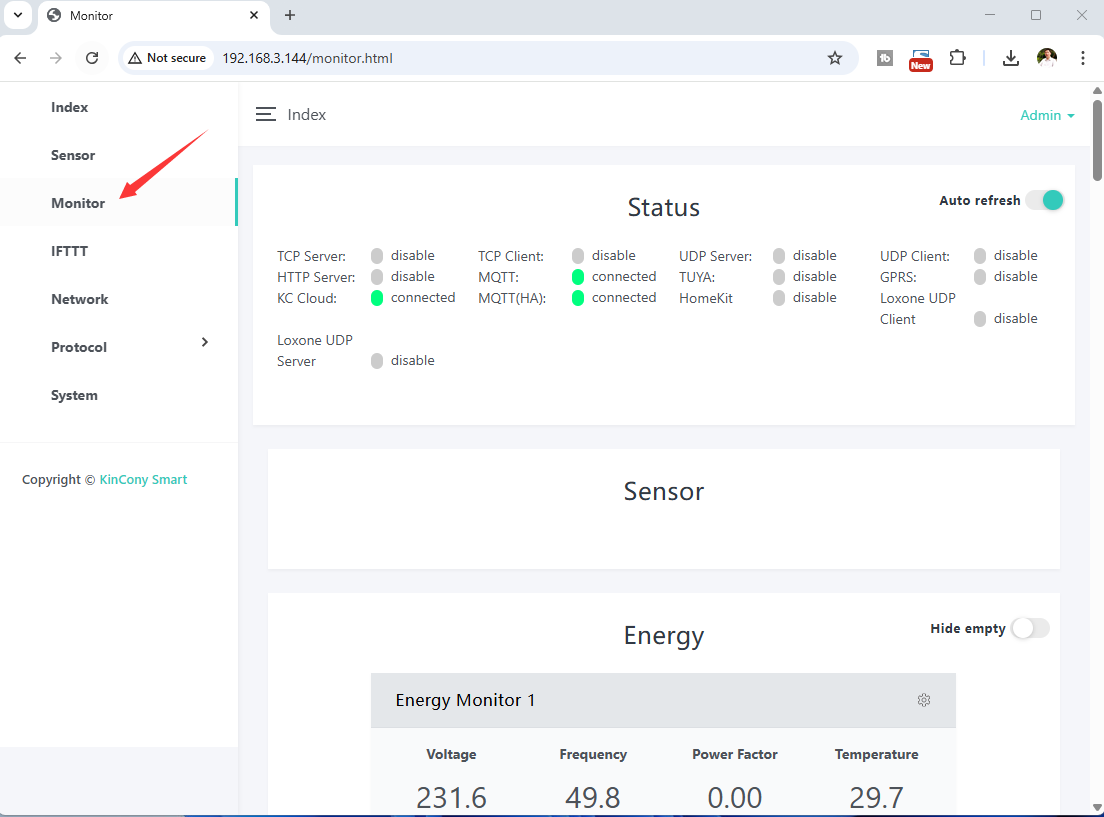
Here is monitor webpage.
Monitor all protocol work state, whether have connect to server or have a client have connected.
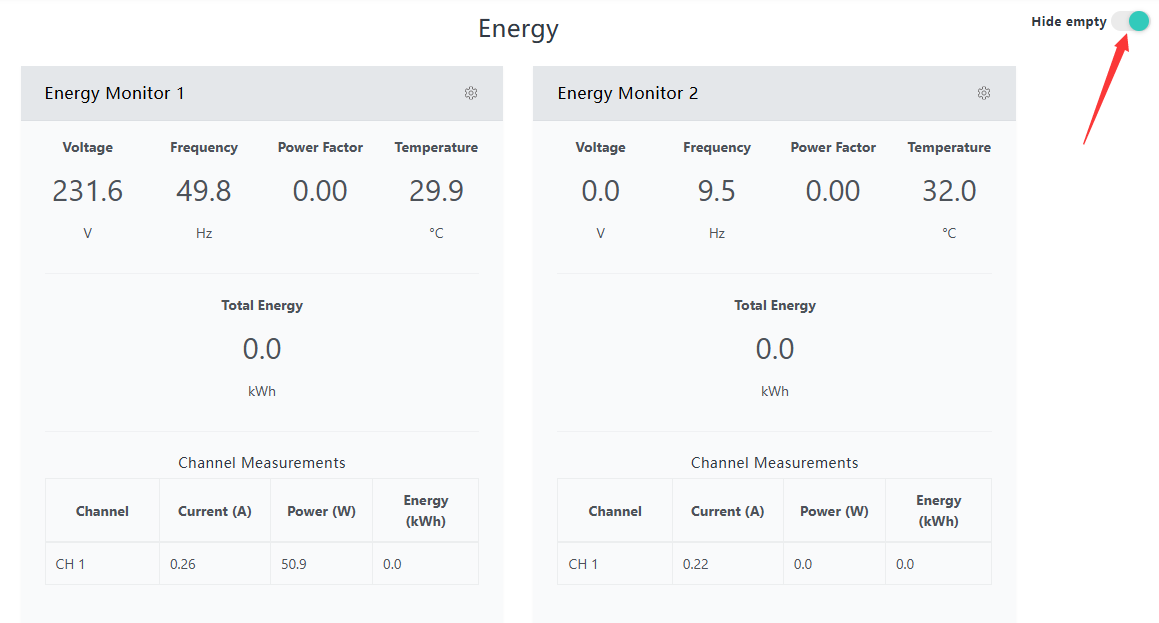
“Hide empty” option, it can hide all not used (no data) CT data.

this webpage showed all 60 channel energy meter data.
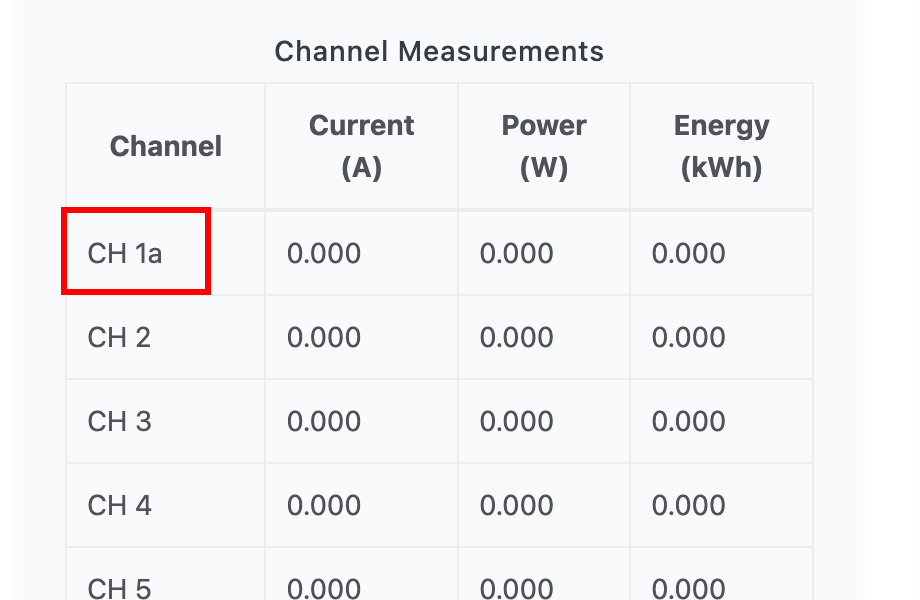
Double-click this area to edit the name, which will be automatically synchronized to Home Assistant via MQTT.
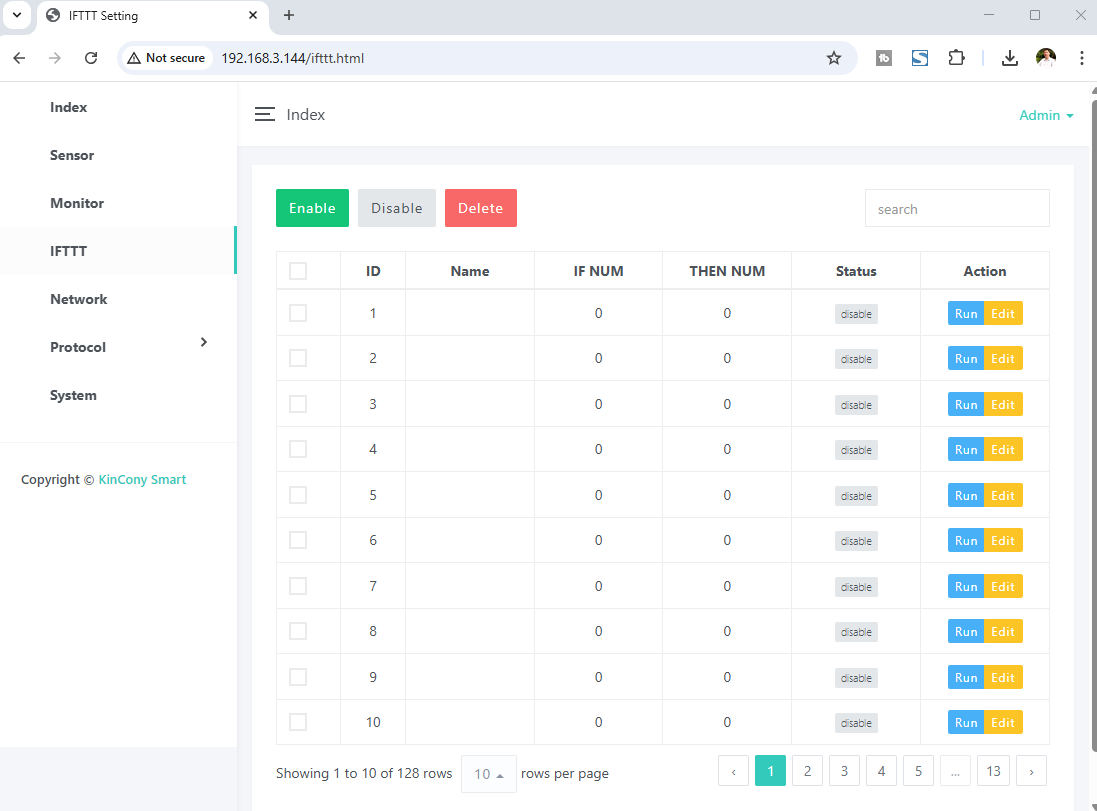
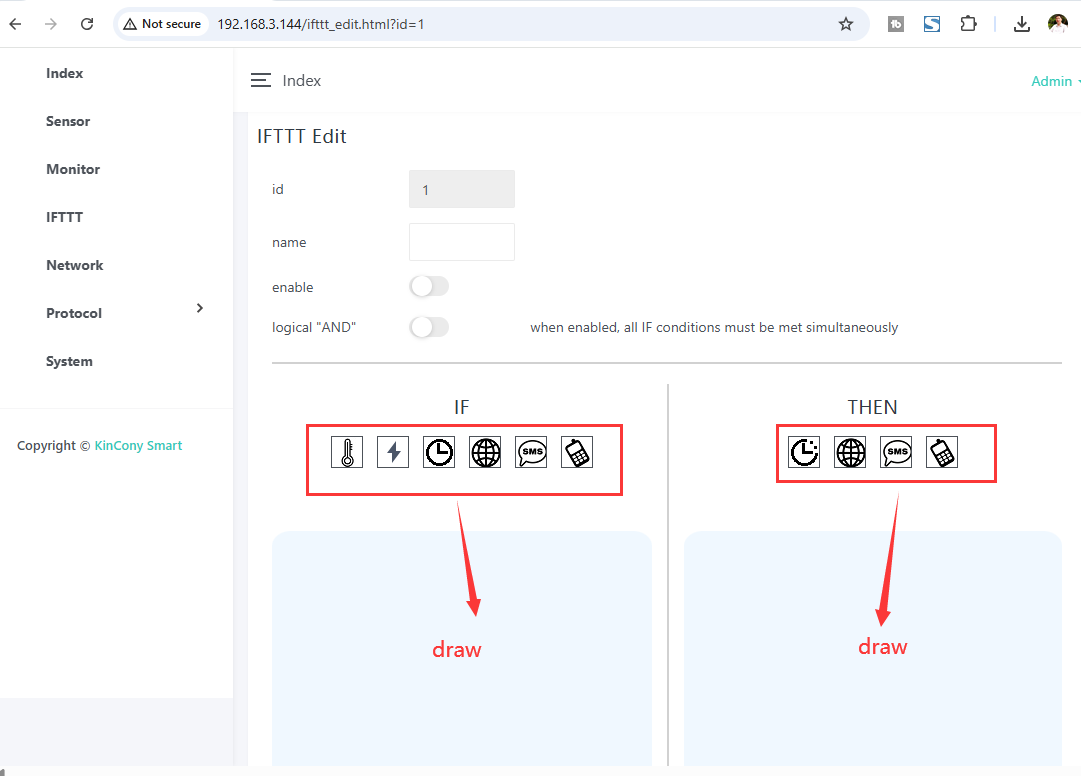
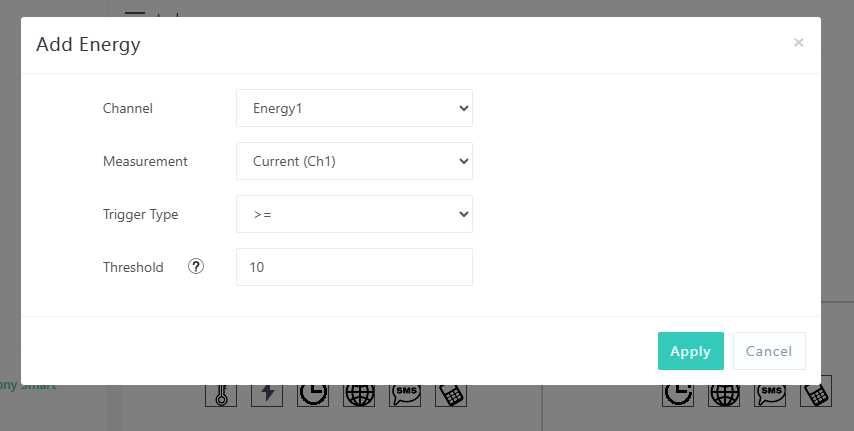
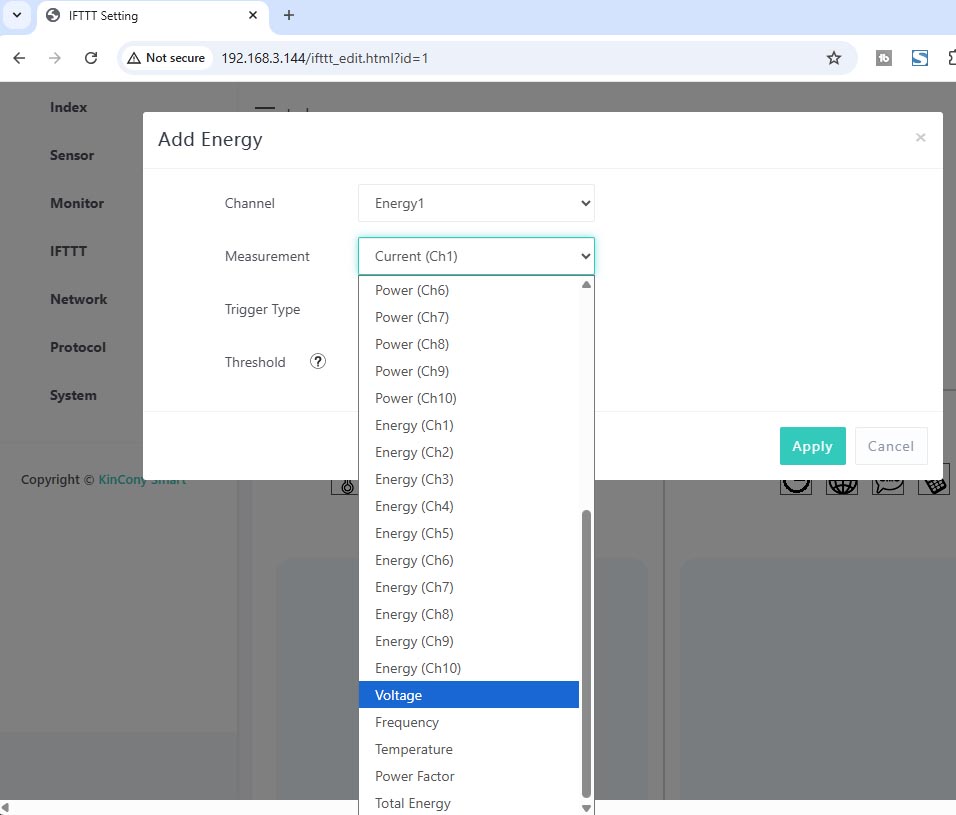
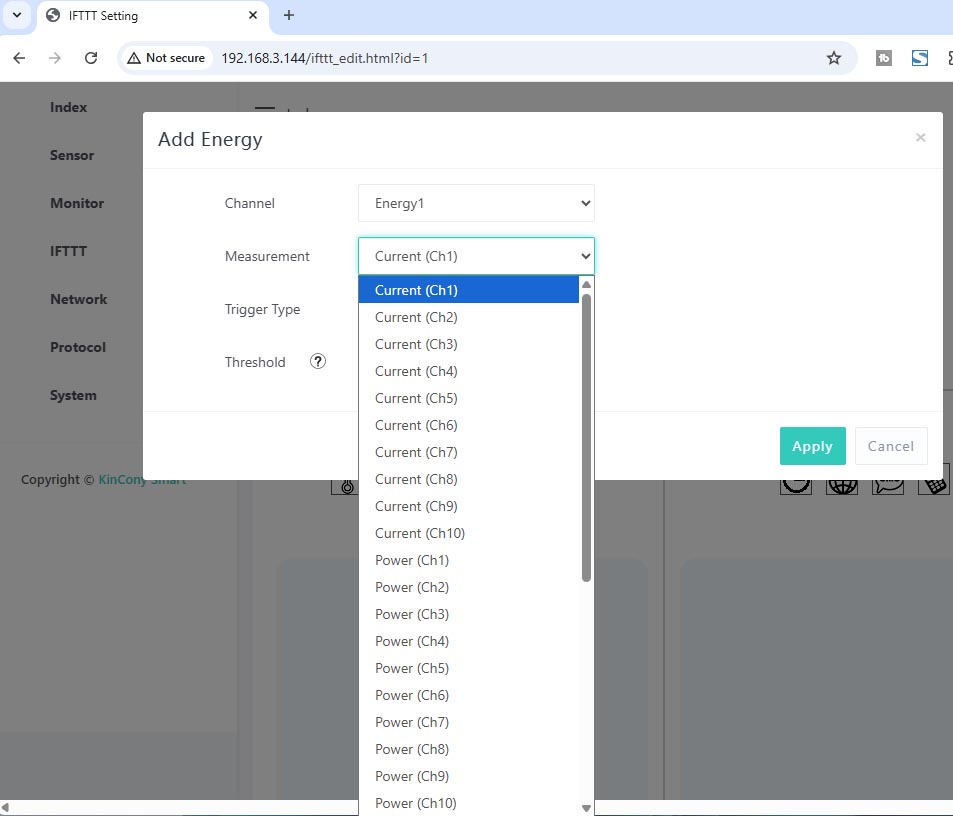
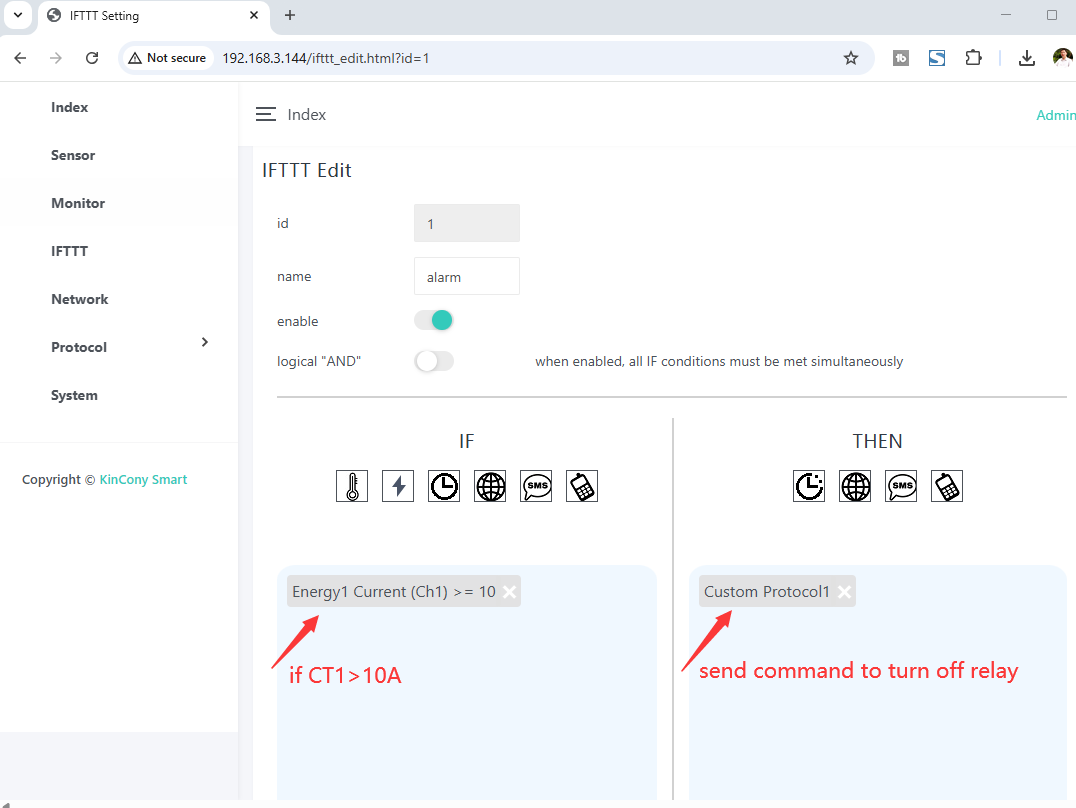
Here is IFTTT webpage. It can create IFTTT AUTOMATION. Press “Run” blue button for running testing. Press “Edit” yellow button for modify.
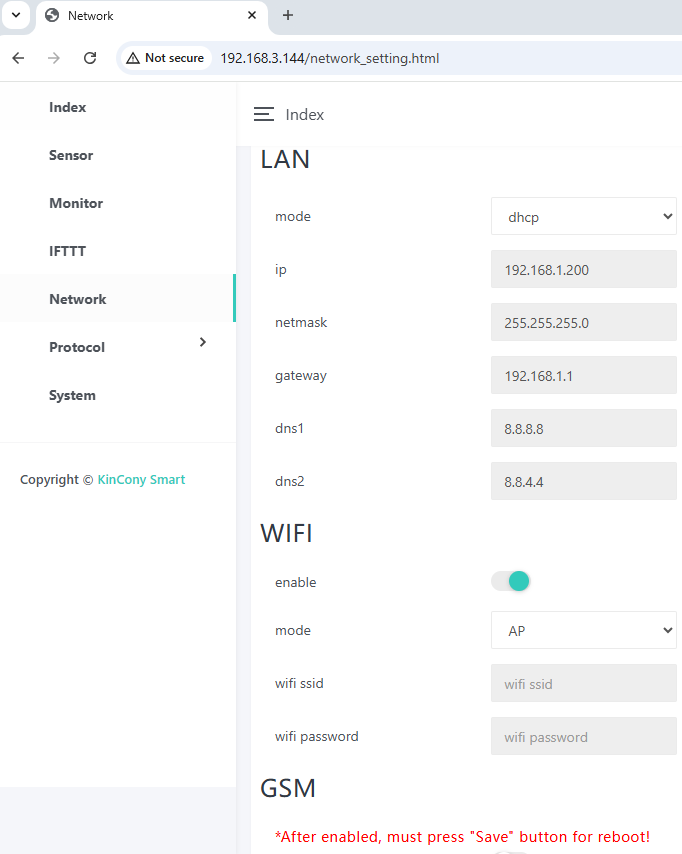
Network setting for ethernet and WiFi.
You if set WiFi by AP mode. device such as mobile phone or tablet can connect to board by wifi directly without wifi router.
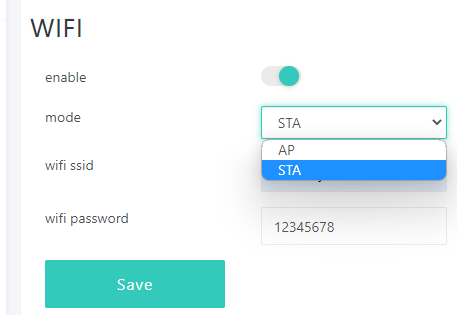
If you set WiFi to STA mode, also you have connect to router by ethernet cable. Board will use ethernet firstly, if ethernet cable disconnected, then will auto switch to WiFi connect to your wifi router, so that make sure let board always connect to your router.
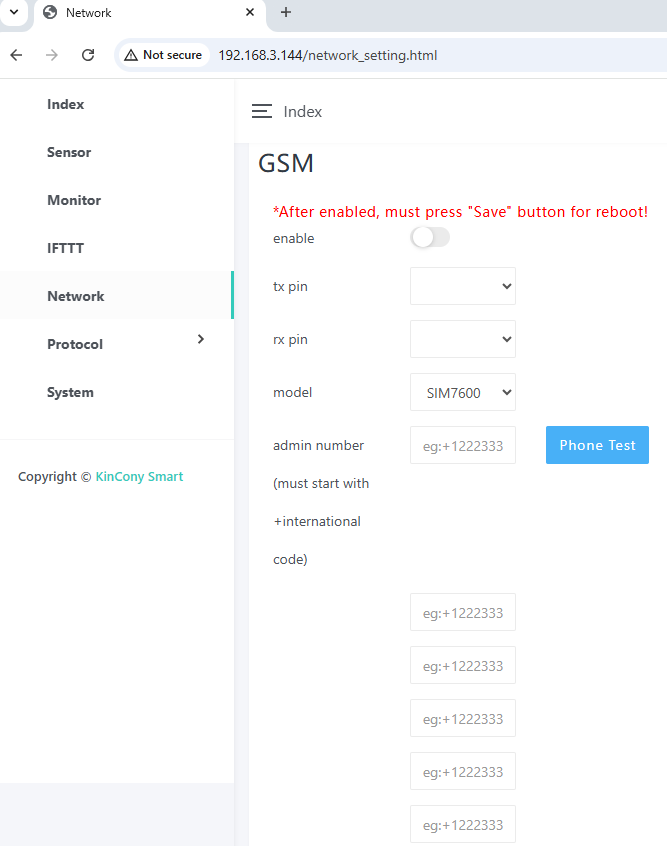
Here is Network – GSM webpage.
You can define extend 4G module RXD, TXD pins, such as for KinCony G1 4G module.
You can enable/disable your GSM module. If disabled, SMS, voice call, GPRS will not work. MAX support fill 6 Administrator Phone Numbers. Only these 6 mobile phone number can use SMS and voice call function.
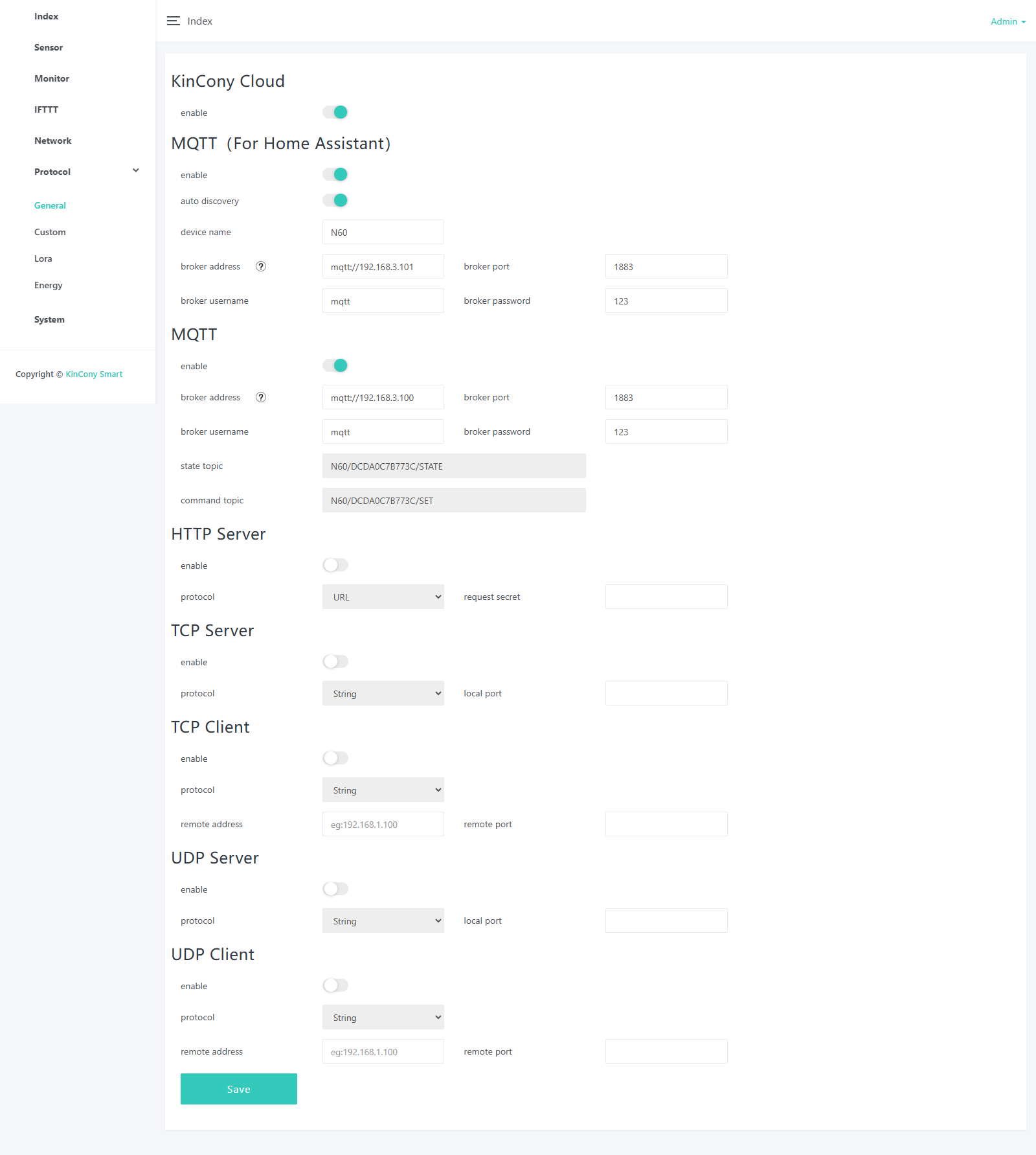
Here is protocol setting webpage. You can enable/disable different protocol in webpage. About these protocol document you can download from KinCony’s webpage.
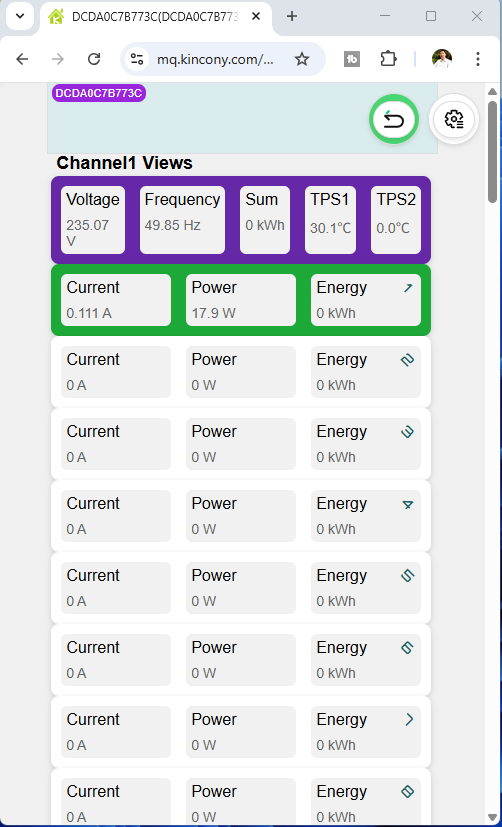
KinCony Cloud: if you enabled, you can remote control relay or monitor sensor state by web browser using internet.
how to use KinCony Cloud service, please see here
MQTT (For Home Assistant): if you enabled, all board hardware resource will auto discovery by home assistant without any config in home assistant. You only set the mqtt broker’s ip, port, username, password. it’s the easiest way for you to use home assistant and KCS web serivce at the same time.
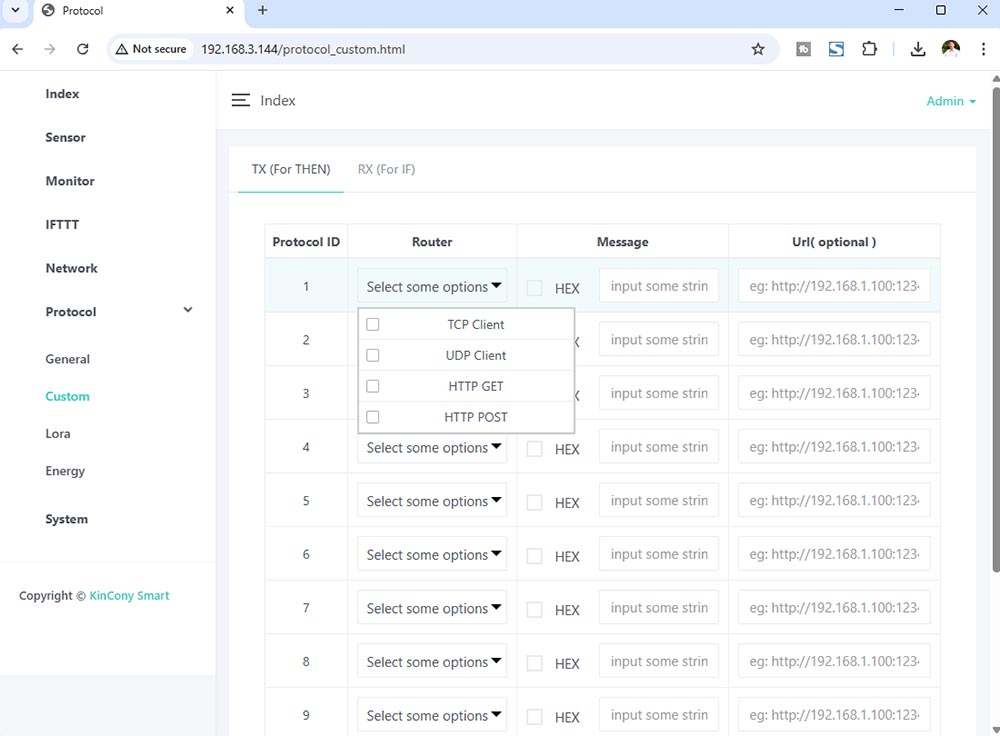
Here is custom protocols webpage.
You can create message for TCP Client, UDP Client, RS232, RS485, HTTP GET, HTTP POST different ways.
If “HEX” options is not checked, will send message by ANSI String.
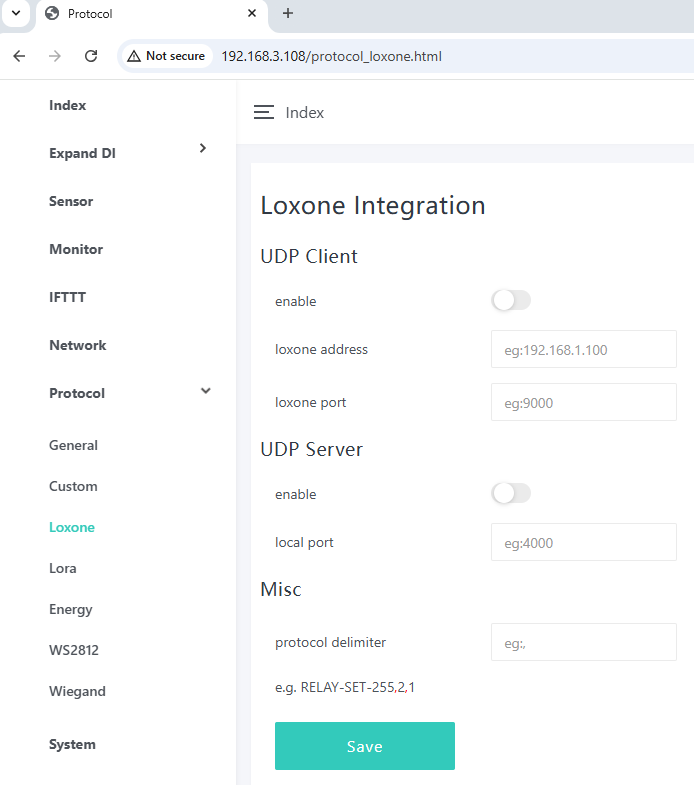
how to integrate to Loxone Miniserver by UDP command, see here: https://www.kincony.com/forum/showthread.php?tid=9312
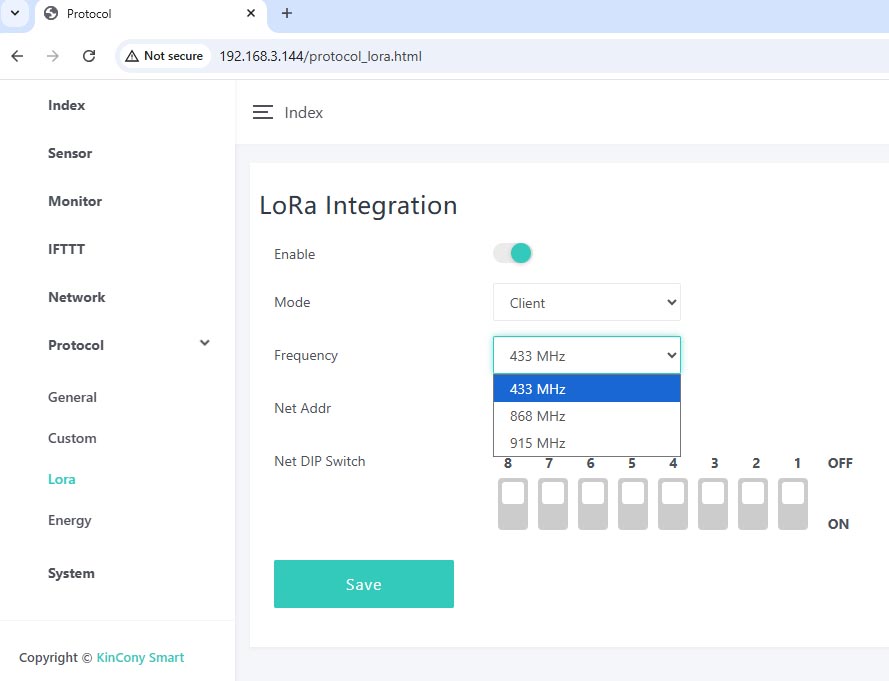
support use LoRa by “Client” or “Server” mode. if enabled LoRa, you can use KinCony LoRa controller to show the data in KCS v3 “Monitor” webpage. N series energy meter board use LoRa with KC868-A6v3 or ALR LoRa board. You can use use one Nx board work as a “Server” and another Nx board work as “Client” mode. The Nx board LoRa default use by 433MHz , if you want use 868MHz or 915MHz, please contact with seller to replace LoRa module.
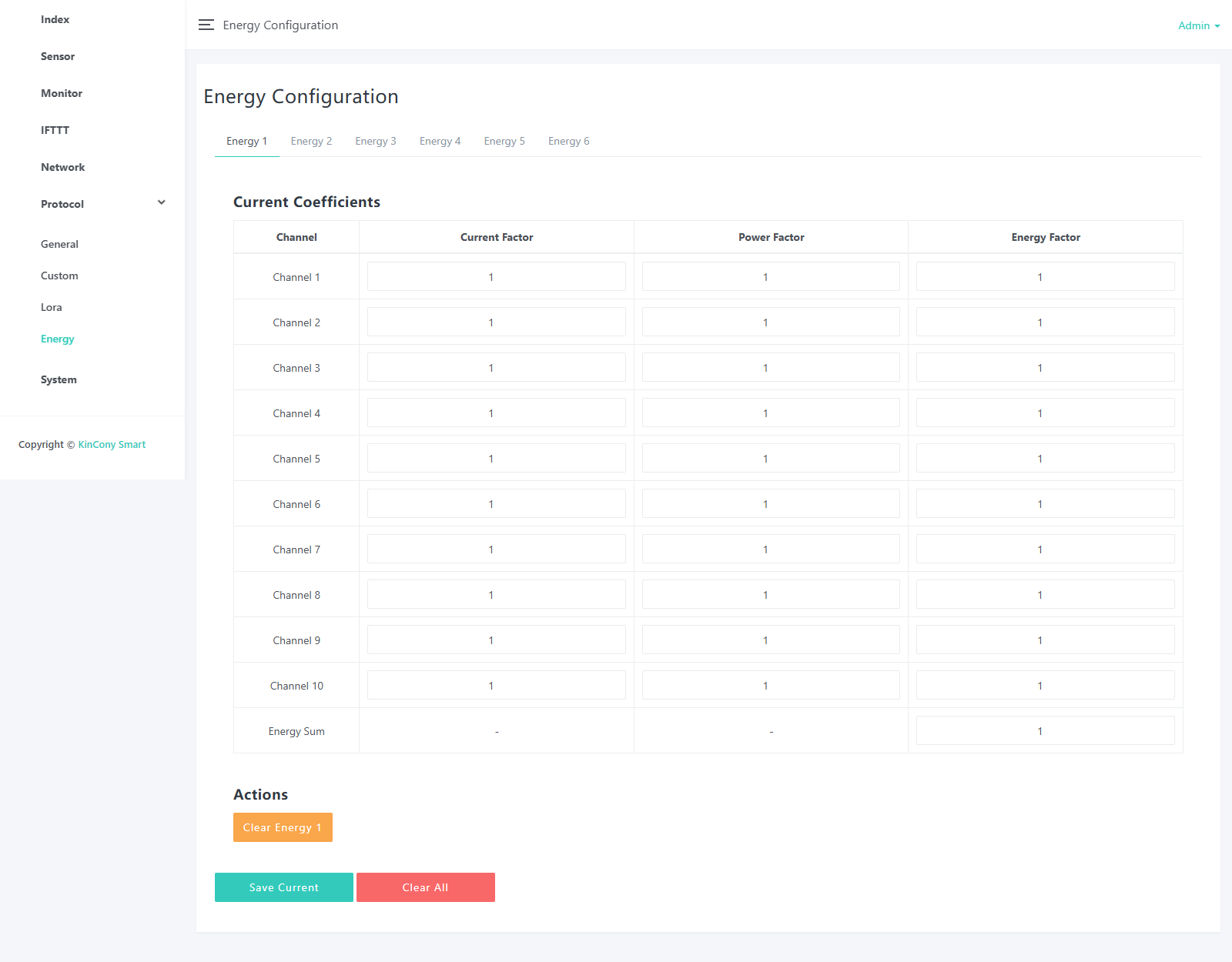
Data calibration by setting simple coefficients. all default coefficients is 1
“Clear Energy 1” : clear Energy1 chip all channel data and reset to 1
“Clear All” : clear Energy1-Energy6 6pcs chip all channel data and reset to 1
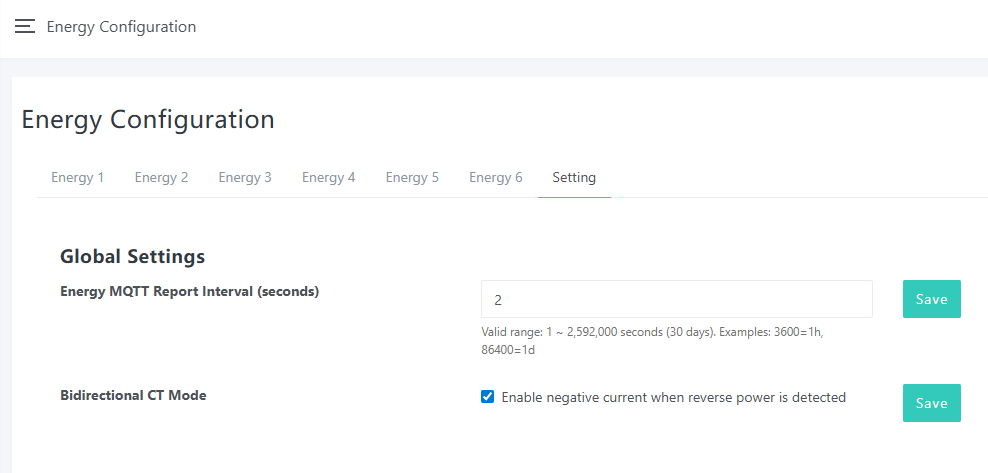
Energy MQTT Report Interval: mqtt message auto feedback interval time.
Bidirectional CT Mode: if enabled, change CT sensor cable direction, it will show negative value of “current” and “power”.
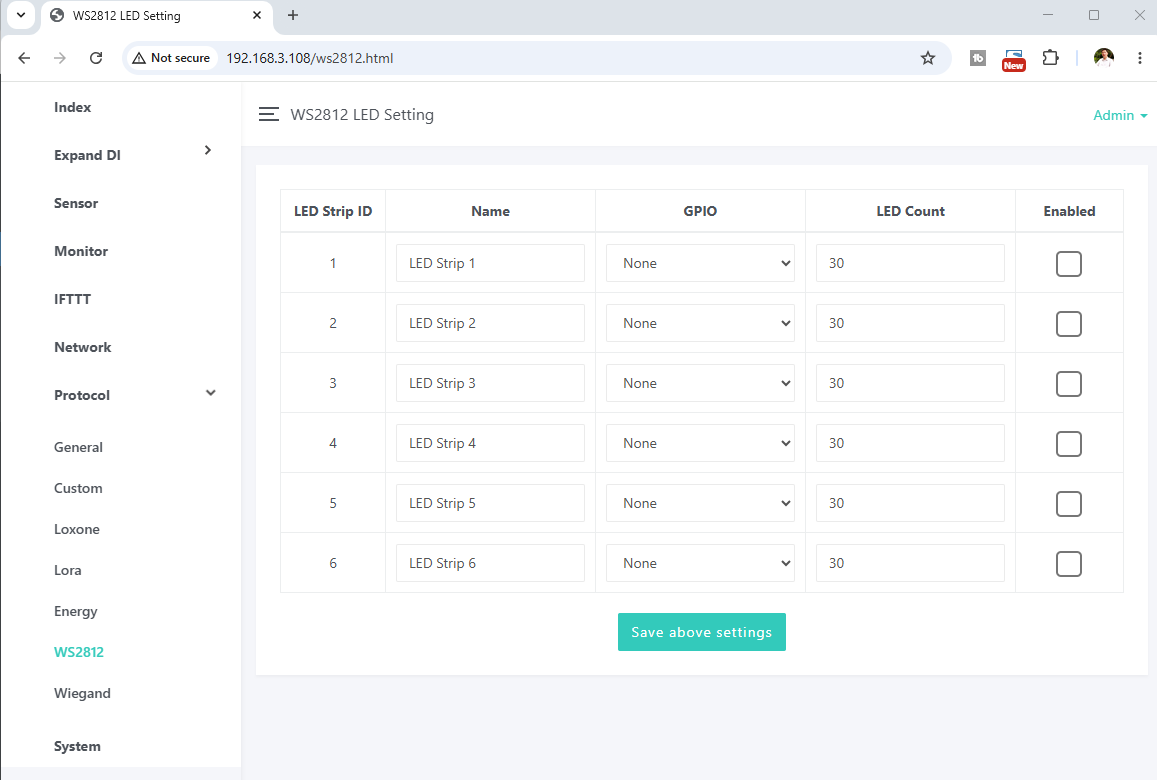
Set WS2812 RGBW led strip.
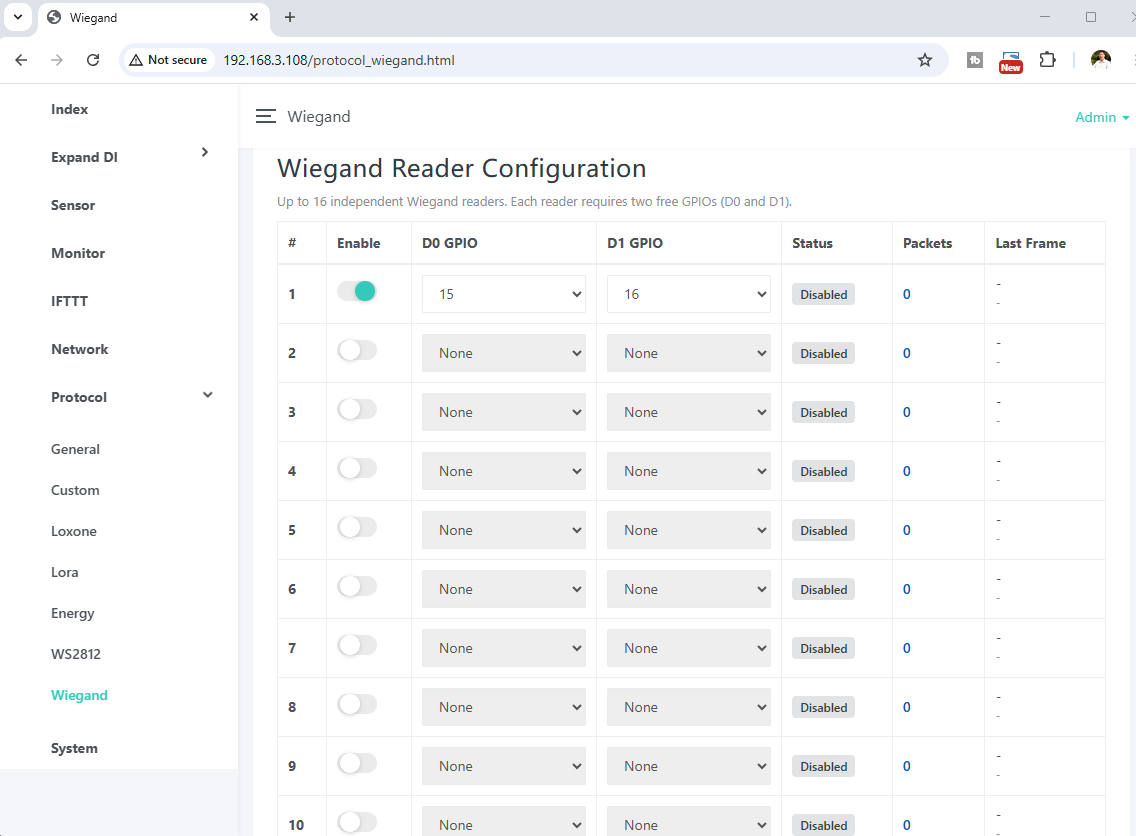
you can use access control panel by wiegand interface , just set D0 and D1 pin define. one kincony controller support multi access control panels. You can make wiegand automation by IFTTT. such as fingerprint / IC card / password / facial recognition for automation.
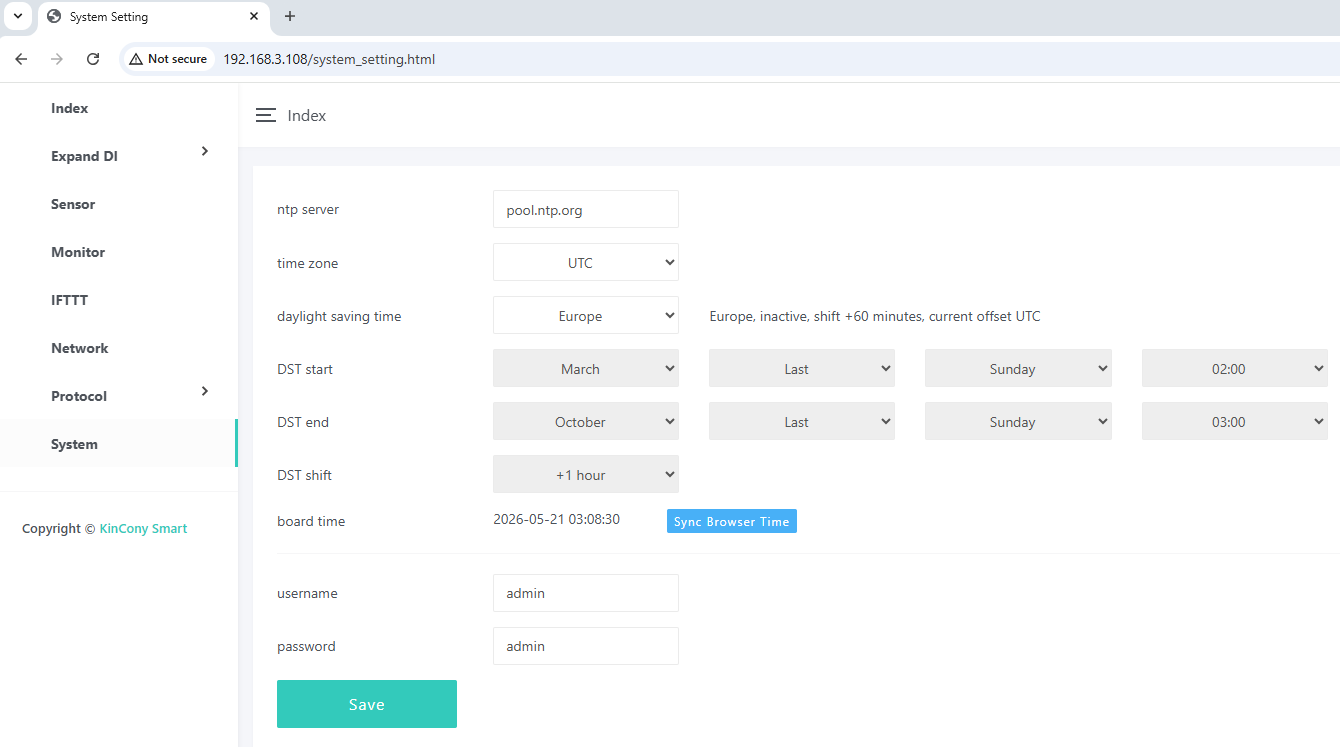
DST setting: set the daylight saving time for different regions of the world.
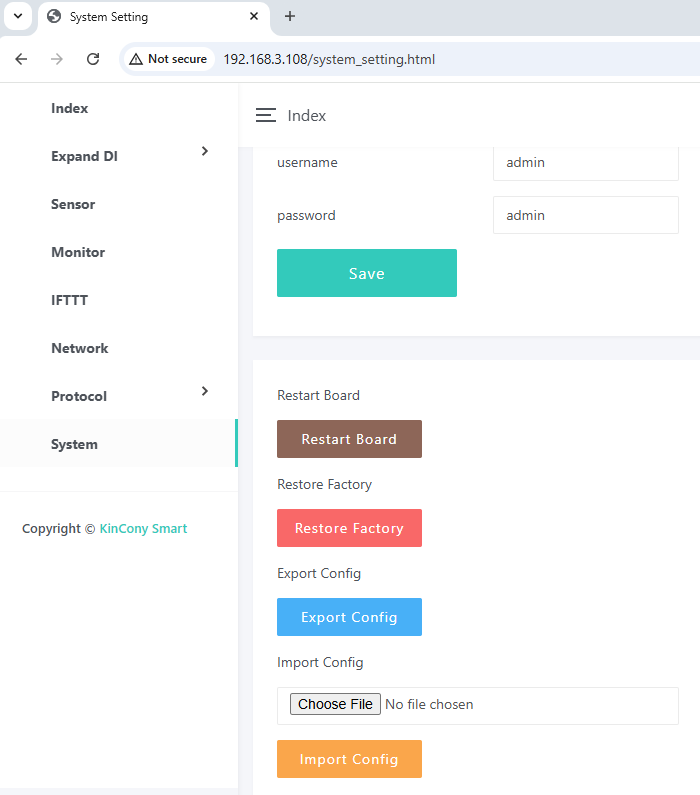
“Restart Board”: reboot board.
“Restore Factory”: clear all setting and set WiFi to “AP” mode.
“Export Config”: export config setting as a file.
“Import Config”: import config setting from a file.
if you have disabled LoRa, inserted SD card will save data LOG as Excel file. if you enabled LoRa, SD card will stop save LOG. They can’t work at the same time.


